
How Live-Streaming Gift Animations Actually Work: A Practical Guide to SVGA (Web, Android & iOS)
Learn how SVGA powers live-streaming gift animations across Web, Android, and iOS, with practical guidance on transparency, performance, compatibility, and deployment.

The clean, lightweight animation format powering the flashy gifts you see in live-streaming and social apps — and how to ship it without killing performance
If you’ve ever built a live-streaming, voice-chat, or social-companion app, you already know the pain: a designer hands you a gorgeous rocket-launch gift animation, you drop it in feeling confident, and then it either shows up as a white screen, stutters on mid-range phones, or quietly leaks memory until the app crashes.
I’ve spent years leading a design team that builds virtual gift animations for exactly these products. Along the way we’ve shipped a lot of effects across three platforms and collected our share of scars. This piece walks through SVGA — the format most of the industry reaches for — from how it works internally to production-ready integration on Web, Android, and iOS, plus the performance techniques that actually matter under load.
Here’s the counterintuitive takeaway up front: the performance ceiling of a gift animation is set at the design-and-export stage, not in your code. More on why below.
1. What SVGA Is: The Problem It Solves
The hardest part of live-stream gift animations was never “does it look good” — it’s “will it actually run in production.” A designer builds an elaborate rocket effect in After Effects, hands it to engineering, and every obvious option falls short:
GIF — color banding, no real transparency, and bloated file size.
PNG sequence frames — a single complex effect can be hundreds of images, exploding your bundle size.
Lottie — great for vector motion, but struggles with particles, masks, and complex bitmap-heavy effects.
SVGA exists to resolve this tension. It’s a cross-platform animation format: you take the vector animation and bitmap assets authored in After Effects / Animate CC (Flash), package them into a single .svga file via an export plugin, and let each platform’s player reconstruct the animation at runtime.
In one line: clearer than GIF, lighter than frame sequences, and better than Lottie at reproducing the complex bitmap effects designers actually want. That’s why gift-heavy scenarios — live streaming, voice chat, social companion apps — lean on it so heavily.
The official players cover Android, iOS, and Web (the SVGAPlayer family — the GitHub repo literally states “Render After Effects / Animate CC animations natively on Android and iOS, Web”). One set of assets runs on all three platforms, which is a big reason it became a de facto standard in the industry.

A typical “send a rocket” live-stream gift effect, built with SVGA
2. How It Works: What’s Inside a .svga File
Understanding the internals means you won’t be flying blind when you integrate or debug.
A .svga file is essentially a binary package serialized with Protobuf (early 1.x versions used a ZIP structure; 2.x switched to Protobuf for smaller size and faster parsing). It holds two main things:
Bitmap assets (images). Every image element the designer used in AE, packed in as PNG binary data. This is the primary source of an SVGA file’s size — and the main target for optimization later.
Animation description data (frames / keyframes). For each frame, the position, scale, rotation, opacity, anchor point, masks, and vector drawing instructions for every layer. The player’s job is to read these descriptions frame by frame and draw the corresponding bitmaps onto the canvas using the transform matrices.
So the playback pipeline is: parse Protobuf → get bitmaps + per-frame layer transforms → render frame by frame to Canvas / GPU. Unlike video, it doesn’t store a full image per frame — it stores “the assets plus how they move.” That’s the fundamental reason it stays sharp while keeping file size down.
3. From Design File to .svga: The Export Stage Is Where It’s Won or Lost
From years of working alongside designers, I want to stress this: most SVGA performance problems are baked in at export, not written into your code. There’s only so much the frontend can optimize; the source of truth is the asset.
The typical flow: the designer finishes the animation in After Effects → installs the official export plugin (SVGAConverter / the matching AE plugin) → exports to .svga.
A few export decisions directly determine the final file’s performance:
Don’t oversize the canvas. A live-stream gift’s actual display area rarely exceeds the screen width. A canvas of 750×750, or sized to the real display area, is usually plenty. Exporting at full-screen 1080×1920 just makes every frame’s bitmaps larger and doubles memory usage.
Control the number and size of bitmaps. Every distinct bitmap gets packed into the file. If an element is actually static, don’t make it a per-frame independent layer. Reuse a single asset for repeated elements.
Don’t crank the frame rate blindly. For most live-stream gift animations, 15–24fps already looks smooth to the eye. Forcing 60fps multiplies the frame data for very little visible gain.
Always check file size after export. A single gift animation should ideally stay under 1MB; even complex large effects should try to stay under 2–3MB. Above that, go back and check whether the canvas is too big, there are too many bitmaps, or the frame rate is too high.
4. Integration: Web (The Main Focus)
Web has the lowest barrier to entry and is the best place to validate quickly, so let’s start here. The official library is svgaplayerweb (SVGAPlayer-Web).
4.1 Install
npm install svgaplayerweb --saveOr drop in via CDN:
<script src="https://cdn.jsdelivr.net/npm/svgaplayerweb@2/build/svga.min.js"></script>4.2 Basic playback
Prepare a container in your HTML (the Web player renders to Canvas):
<div id="gift-container" style="width:300px;height:300px;"></div>Load and play in JavaScript:
// 1. Create the player, passing the container selector
const player = new SVGA.Player('#gift-container');
// 2. Create the parser
const parser = new SVGA.Parser('#gift-container');
// 3. Parse a remote .svga file
parser.load('https://your-cdn.com/gifts/rocket.svga', (videoItem) => {
// 4. Hand the parsed result to the player
player.setVideoItem(videoItem);
// 5. Start playing
player.startAnimation();
}, (error) => {
console.error('SVGA failed to load:', error);
});That’s enough to get a gift animation running in the browser. The core is four steps: create player → create parser → load asset → setVideoItem, then startAnimation.
4.3 Playback control: what live-stream scenarios use most
In live streaming, a gift animation is usually “triggered once, plays through, then gets destroyed,” so listening for the finish event and cleaning up promptly is critical:
// Play only once (default loops forever; 0 means infinite loop)
player.loops = 1;
// Listen for playback completion
player.onFinished(() => {
console.log('Gift animation finished');
player.clear(); // Clear the canvas
// Pull the next gift from the queue and keep playing
});// Listen per frame (for progress syncing; optional)
player.onFrame((frame) => {
// frame is the current frame index
});4.4 Dynamic elements: swap avatar and nickname in the same animation
This is a high-frequency need for gift animations — the same template, injected with different users’ avatars and names (e.g., “XX sent a Rocket”). SVGA supports dynamic image and text replacement:
parser.load('rocket.svga', (videoItem) => {
  player.setVideoItem(videoItem);
// Dynamically replace an image (the key is the layer name the designer set in AE)
const img = new Image();
img.src = 'https://your-cdn.com/avatars/user123.png';
img.onload = () => {
player.setImage(img, 'avatar'); // 'avatar' matches the layer name
player.startAnimation();
}; // Dynamic text
player.setText({
text: 'BigSpender XX sent a Rocket',
color: '#FFD700',
size: '22px',
family: 'PingFang SC'
}, 'nickname'); // 'nickname' matches the text layer name
});One collaboration note here: the key you use for dynamic replacement must exactly match the layer name the designer set in After Effects. So design and engineering need to agree on a layer-naming convention up front — otherwise the frontend has no idea which layer to replace. More on this below.
5. Integration: Android / iOS (Native Support)
Mobile is the main battlefield for live-streaming apps, and the official native players integrate much like the Web version.
5.1 Android
Gradle:
implementation 'com.github.yyued:SVGAPlayer-Android:2.6.1'Add an SVGAImageView to your layout:
<com.opensource.svgaplayer.SVGAImageView
    android:id="@+id/svga_gift"
    android:layout_width="300dp"
    android:layout_height="300dp"
    app:autoPlay="true"
    app:loopCount="1" />
Load in code:
val svgaView = findViewById<SVGAImageView>(R.id.svga_gift)
val parser = SVGAParser(this)
// Load from network
parser.decodeFromURL(URL("https://your-cdn.com/gifts/rocket.svga"),
object : SVGAParser.ParseCompletion {
override fun onComplete(videoItem: SVGAVideoEntity) {
svgaView.setVideoItem(videoItem)
svgaView.startAnimation()
}
override fun onError() {
Log.e("SVGA", "Load failed")
}
})Dynamic replacement via SVGADynamicEntity:
val dynamicEntity = SVGADynamicEntity()
dynamicEntity.setDynamicText("BigSpender XX sent a Rocket",
    TextPaint().apply { color = Color.YELLOW; textSize = 44f }, "nickname")
svgaView.setVideoItem(videoItem, dynamicEntity)
5.2 iOS
CocoaPods:
pod 'SVGAPlayer'Swift:
let player = SVGAPlayer(frame: CGRect(x: 0, y: 0, width: 300, height: 300))
player.loops = 1
player.clearsAfterStop = true
view.addSubview(player)
let parser = SVGAParser()
parser.parse(with: URL(string: "https://your-cdn.com/gifts/rocket.svga")!,
completionBlock: { videoItem in
player.videoItem = videoItem
player.startAnimation()
}, failureBlock: { error in
print("SVGA failed to load: \(String(describing: error))")
})The mental model is identical across all three platforms: parser loads the asset → player setVideoItem → startAnimation. Learn one, and the other two follow.
6. Performance Optimization: What Matters Under Real Load
Gift-animation performance problems tend to erupt on low-end devices and under high concurrency (big-gift combos, full-screen broadcasts). These are the techniques that pay off in practice.
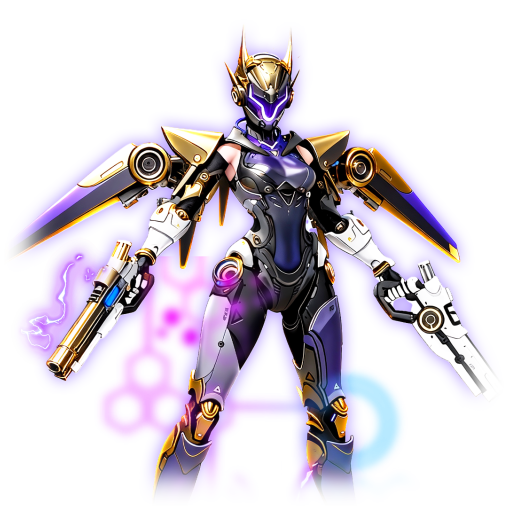
A more complex live-stream gift animation
6.1 Assets first (biggest payoff)
As covered in the export section, the conclusion bears repeating: control canvas size, control the number and size of bitmaps, use a reasonable frame rate, and keep files under 1MB. Every KB saved at the asset level is real memory and decode cost saved at runtime. Get this right and many code-level problems never appear.
6.2 Preloading and caching
Gifts are predictable in live streaming — the panel only has a few dozen types — so don’t wait for the user to tap before downloading. A common approach: when a user enters the room, pre-download the high-frequency gifts’ .svga files to local cache; at playback time, read from cache first and fall back to network only on a miss. On Web you can use Service Worker / IndexedDB; on mobile use the official player’s built-in caching or your own file cache. This removes the “tap a gift, wait for a stutter, then it appears” lag.
6.3 A playback queue: handling combos and concurrency
When high-value gifts are sent in rapid combos, or many users send gifts at once, rendering each immediately stacks up player instances and instantly maxes out memory and GPU. The right approach is a playback queue:
const giftQueue = [];
let isPlaying = false;
function enqueueGift(svgaUrl, dynamicData) {
giftQueue.push({ svgaUrl, dynamicData });
if (!isPlaying) playNext();
}function playNext() {
if (giftQueue.length === 0) { isPlaying = false; return; }
isPlaying = true;
const { svgaUrl, dynamicData } = giftQueue.shift();
parser.load(svgaUrl, (videoItem) => {
player.setVideoItem(videoItem);
// ...dynamic replacement...
player.startAnimation();
});
player.onFinished(() => {
player.clear();
playNext(); // Fetch the next one after finishing
});
}A common refinement is tiering: small everyday gifts go through a lightweight channel (droppable if needed), while large gifts / full-screen broadcasts use the serial queue to guarantee they play in full.
6.4 Release promptly
Always clear() / destroy and free bitmap memory after an animation finishes — especially on mobile. Hold on too long and memory climbs with every gift played, eventually leading to OOM, stutter, or overheating. On Web, remember to clean up the player instance on component unmount to avoid leaks.
6.5 Degradation strategy
On low-end devices, degrade the most complex large gifts — play once without looping, or substitute a static image plus a simple label for the full animation. Base the decision on the device’s performance tier or dropped frames observed on first playback.
7. Quick Troubleshooting Checklist
Nothing shows / white screen — first confirm the
.svgafile itself parses correctly (use the official online preview tool to validate the asset), then check whether the container has zero size.Dynamic replacement isn’t working — 99% of the time the layer key doesn’t match. Confirm the layer naming in AE with your designer.
Animation looks blurry — usually the export canvas was too small and it’s being upscaled.
Stutter / overheating — check asset size and whether you have a queue before you blame the player.
Memory keeps climbing — check whether you’re clearing / releasing after playback.
Closing Thoughts
Integrating SVGA isn’t hard — the mental model is consistent across all three platforms and there isn’t much code to write. What really decides whether a gift animation looks good and runs well is the stretch from design to export: canvas size, bitmap count, frame rate, naming conventions. Those choices set the performance ceiling before a single line of code is written.
My team builds virtual gift animations for live-streaming and voice-chat products full time — from AE design and export standards to cross-platform integration, we’ve hit most of the potholes and distilled them into an asset spec and a library of reusable gift-animation assets. If you’re working in this space too, I’d love to compare notes — drop a comment with the specific problem you’re facing.

A large full-screen live-stream gift animation
A well-designed, performance-conscious gift animation takes design and engineering polishing it together
If this saved you a headache, a clap or a follow means a lot. I’ll be breaking down other gift-animation formats — VAP and PAG — and how to choose between them in upcoming posts.
Last updated: